
Always Watermark Your Photography (Part 1)
 I always watermark my photography. Whether it’s a client’s photo that I’m showcasing, a general professional photo that I’ve taken or just a quick snap shot of my family, I throw a watermark on it. Some might find this annoying. Others might find it egotistical (“boy, she thinks even her lousy snap shots are something worthy of a watermark”). I actually have two important reasons for doing this and neither is to annoy or offend anyone.
In this blog, part 1 of two, I will discuss the first reason. The first is SAFETY. I think EVERYBODY should be putting watermarks on their photos – no matter what the quality and no matter who takes the photos. I have seen several stolen pictures, usually of children, that people post and claim the children as their own! So I apply my watermark on all photos of children to protect the children (I’ve seen it happen with teenagers, women, couples, and pets, too.) The watermark provides a little bit of protection. It will deter some people from stealing the photo. It’s much easier to steal a non marked photo than to have to take one that has a watermark on it and attempt to cover it or crop it out. If someone does go ahead and steals it and removes the watermark, unless they are a professional, you will be able to tell that a watermark or something was cut out. It’s usually pretty evident that it was cropped (it just doesn’t look right) and it brings attention to it, which alerts others.
A few years ago in an online group I belong to, a new user came on with some outrageous stories. We were all pretty skeptical of her. But what really allowed us to confirm she was a fraud were some pictures she posted of her “daughter”. They were cropped in an odd way and it looked like a watermark or some sort of writing had been there. So someone in our group did a little searching and found that it was indeed a picture of somebody else’s little girl and the poster had stolen it.
Watermarking photos is easy, even for the non-professional. It does not require any fancy software. Most computers come with some basic editing software. Every PC I’ve owned has come with the basic Paint program. So I am going to provide a quick tutorial for watermarking your photos using Paint. For my test photo, I opened up my photo of strawberries in Paint.


Then I clicked on the Text button and simply wrote in text. You can write your name, nickname, business name, pet’s name or anything you want.
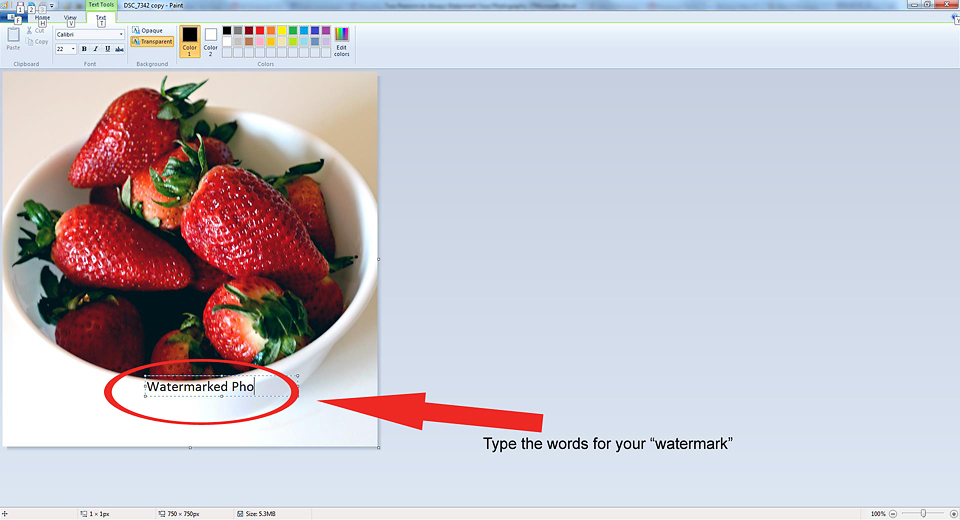
Then I clicked “Save As JPEG”. That’s it. I now have an identifying mark on my photo.


I hope you found this blog helpful. Please stay tuned for next week’s part 2 on reasons to watermark your photography.